Vaultwarden is an open-source port of Bitwarden, a password manager. You are encouraged to use a password manager of some kind generally (in addition to bitwarden there is lastpass, onepassword, etc), including using the lab’s. There are shared password vaults, but your private passwords saved here are encrypted and not accessible to Kevin or anyone else.
This is distinct from Authelia which we use as an authentication layer for lab services. You can (and should!) use Vaultwarden to store your authelia credentials!
Getting started
If you are arriving here from Getting Started, Kevin will need to send you an invite. If you haven’t already received one, check in with him (or check your spam folder - it will come from admin@bonhamlab.bio).
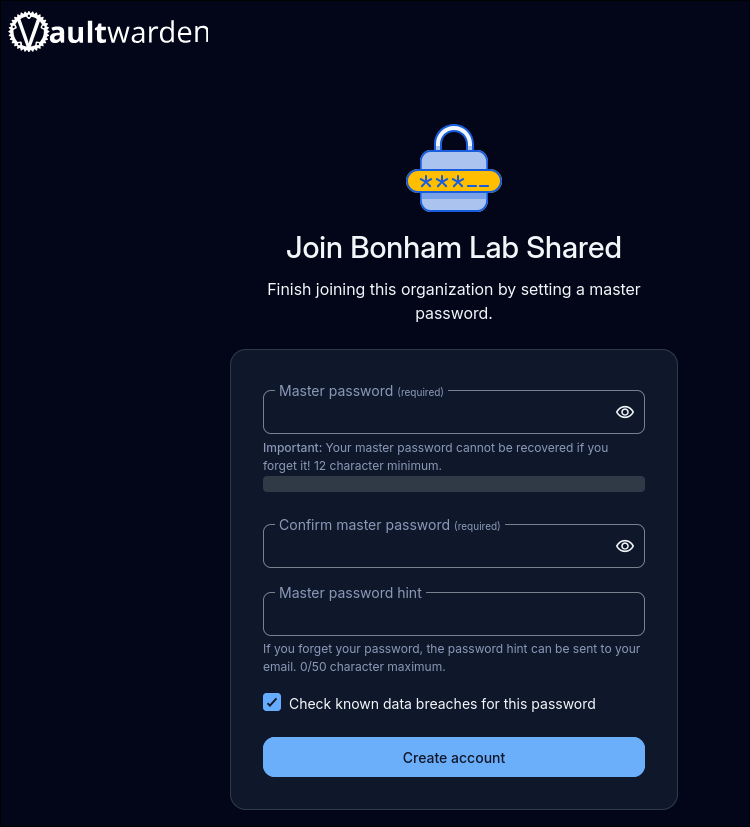
You will be greeted with a prompt to enter your “master password” - this should be a highly secure password
Set a strong password and keep it secure
This login will provide access to shared lab passwords and secrets; don’t just use the thing you use for everything else! The recommendation is to use a random set of 3-4 words that you can tell a story about
correcthorsebatterystaplefrom the xkcd comic is a good example (though obviously don’t use that specifically).
thisisatesttest
Browser extensions and desktop apps
It is also highly recommended that you install the bitwarden extension on your browser:
- Go to https://bitwarden.com/download/
- Select your browser
- Install the extension
To login, click the extension, then change “Accessing: bitwarden.com” (located all the way at the bottom… you may need to scroll) to “self-hosted”:
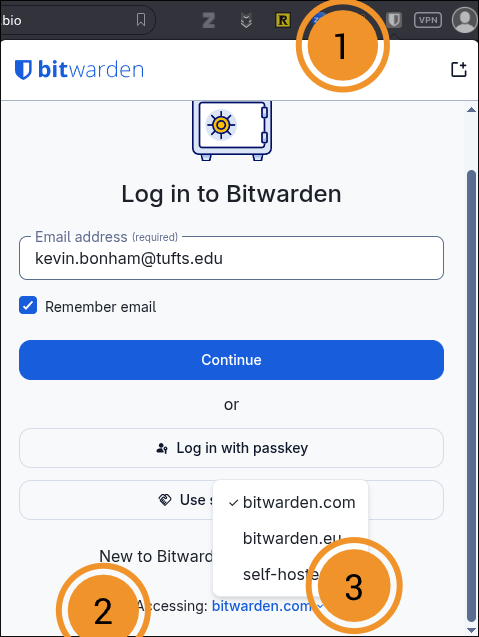
Then enter https://pw.bonhamlab.bio as the server URL. Enter your email address and master password, and sign in.
You can also install the desktop and mobile apps if you’d like (again, bitwarden supplies the apps, even though the service we’re using is vaultwarden)
Using Vaultwarden
On pages where you need to enter a website, vaultwarden should provide you the option to auto-fill. When creating new passwords, it can also generate and automatically save strong passwords and 2-factor authentication keys.
You can also manually add logins, credentials, credit cards etc - anything you save is encrypted and invisible to Kevin or anyone else unless you explicitly add them to the “Bonham Lab Shared” vault.
Creating passwords / new login credentials
When signing up for a new service, use vaultwarden to create and store strong passwords.
If you have the browser extension installed, when you hover over a password field, you should be prompted to “fill generated password”, and you will then be prompted to save it.
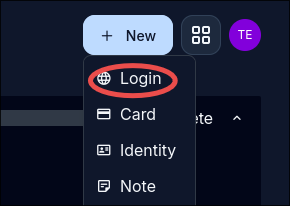
Alternatively, on https://pw.bonhamlab.bio or in the extension, click + New → Login
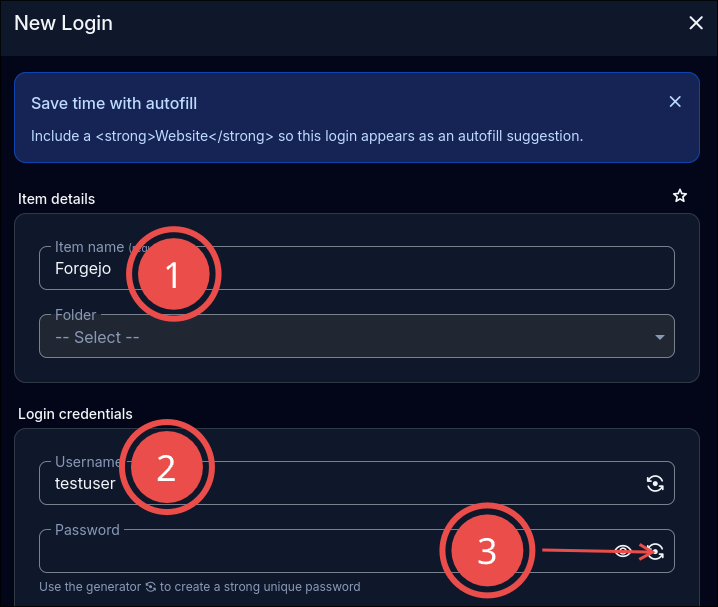
Fill in (1) a name for the entry, (2) your username, and then (3) click the generator button to create a strong random password
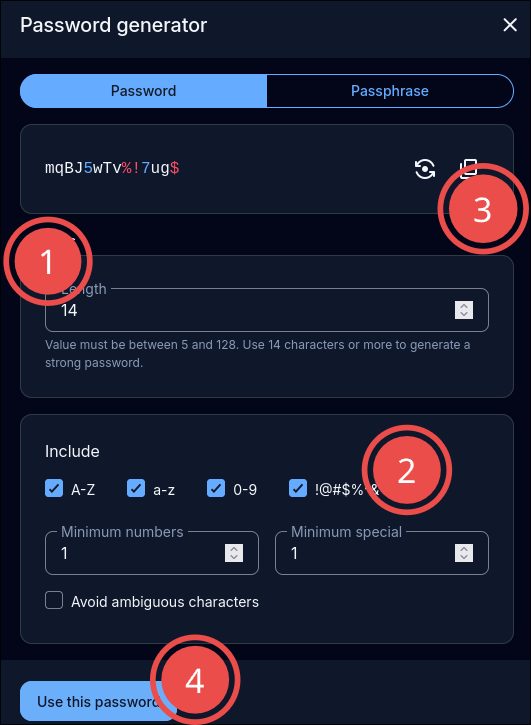
Change the length to 16 (1) and click to include special characters (2). Then copy the generated password to your clipboard (3) and click “Use this password” (4).
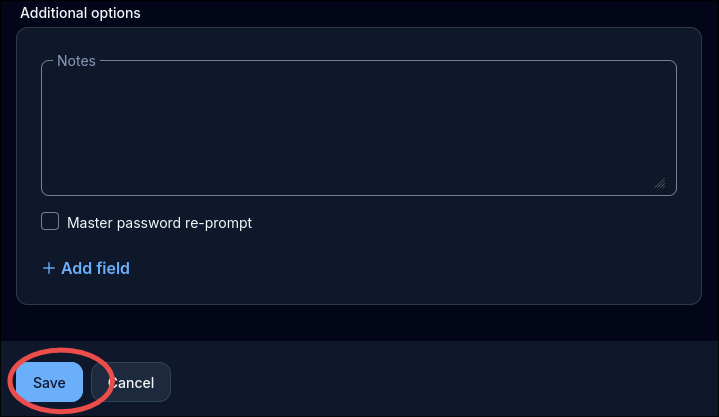
At the bottom of the “New login” dialogue, click “save”
Setting the URI
When you use vaultwarden to autofill from a particular entry, you will be given an option to save that login for a given page. That way, the next time you visit the same page, it will pop up as an option.
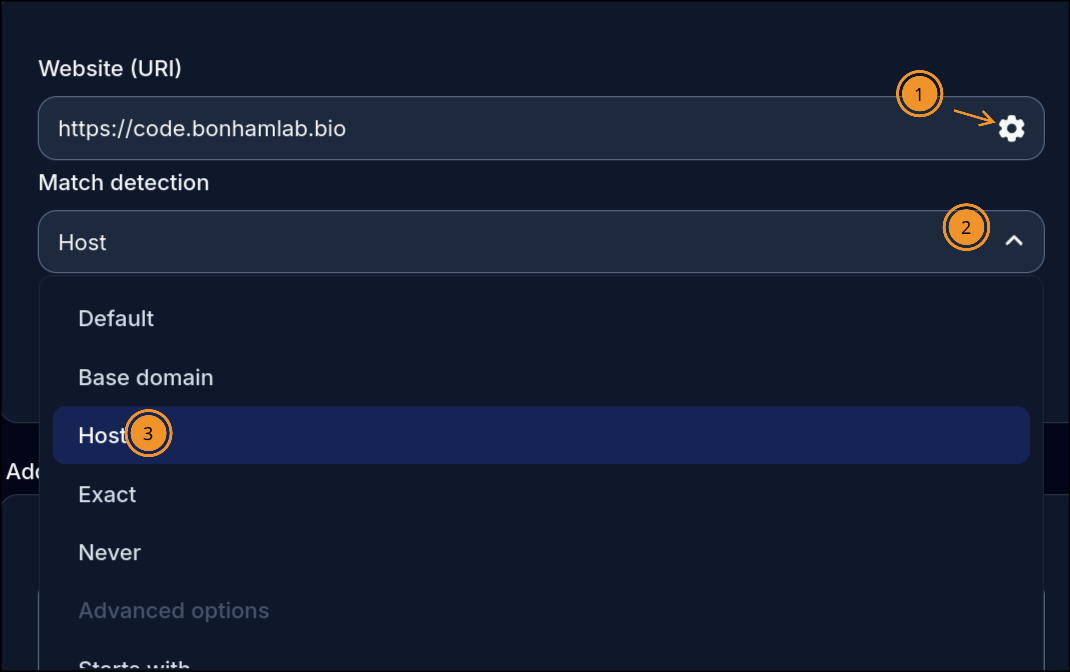
By default, subdomains of the same website are treated the same, so eg if you’ve set up and saved a password for https://documents.bonhamlab.bio and https://code.bonhamlab.bio, both of those will show up on any *.bonhamlab.bio site. To change this, scroll down on the entry to “autofill options”, click the gear icon (1), click “Match detection” (2), and select “Host” from the dropdown (3)