2## First time user
If you’ve never used obsidian before, start by installing it.
Lab vault
Clone the vault using git
The repo is private
Some of the contents of the lab vault are not meant to be public, so the repo is set to private. To access it, you’ll need to be given permission on the lab code forge. See Coding and version control for more information on git.
The next thing you need to do is download the lab vault. The best way to do this is by cloning the lab repository.
$ cd Documents # or wherever you want to put it.
$ git clone ssh://git@code.bonhamlab.bio:443/Internal/ObsidianVault.git
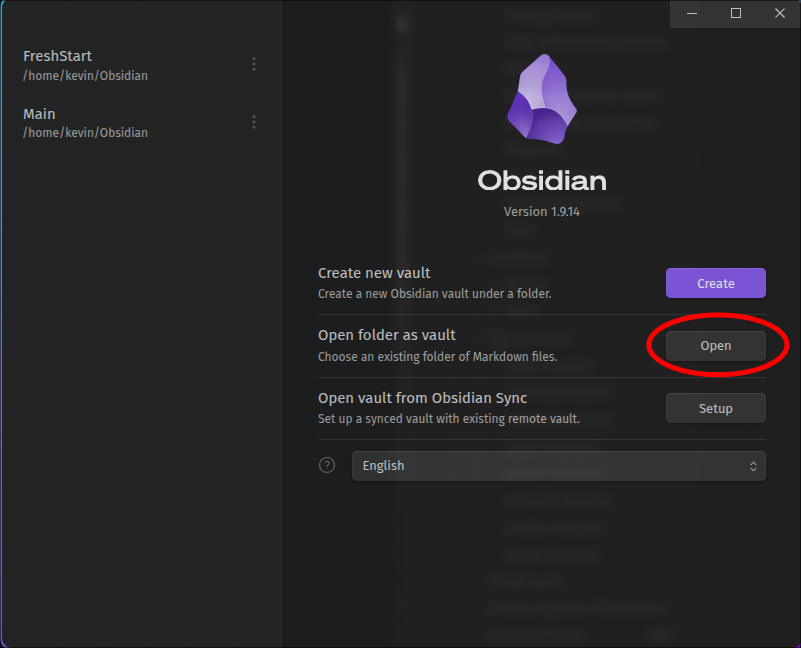
When you start up Obsidian, you will have the option to to create a new vault or open a folder as a vault. Select open a folder, and point it to the repo you just cloned.
Make and save changes
Most files in the vault are simply plain text files, and you can edit and save them within obsidian or other text editors. In order for those changes to be seen by others though, you need to commit and push them using git.
As with other code repos, the appropriate way to do this is to make a fork, branch off of it, and make pull requests. See Coding and version control for more detail if you do not know how to do this.
Lab notebooks
Individual lab notebooks are stored in the Lab_Notebooks/ subdirectory as git “submodules”. You mostly don’t need to know what this means - Kevin will manage them. But you should keep a digital lab notebook in a separate git repo on github or Forgejo. If you need to see the contents of lab notebooks, do git submodule update --init --recursive.