Lab code should be version controlled and hosted on an online repository (probably Forgejo). If you don’t know how to do that, read on!
Using Git
Git is a distributed version control system (DVCS). Basically, that means that you keep track of our code on whatever system you’re working on, and then sync it with whatever other systems need to have the code. No individual code location needs to be the “source of truth” (though in practice we can establish one).
The best way to learn git is to use it. Kevin will push you to use it frequently, and if you run into problems, try to solve them on your own, then ask Kevin to help!
In the meantime, this page has some resources to get you started.
- What is git and github? - a description in plain english
- Learn git, from gitkraken
- Kevin’s HutLab bonus lab meeting presentation
- Video: git will finally make sense after this
Glossary
These terms will come up frequently when using git, and are included here as a reference. A more complete list can be found here
- repo (short for repository) - a folder with git super powers
- stage - a new file or a change to an existing file that will be included in the next commit (when you
git add $FILE, then$FILEis now staged) add- include the file or file change in the next commitcommit(verb) - register staged changes to the version history- commit (noun) - the record of changes from the previous version
- remote - a location different from your current system that the repo also lives. This is often on something like github or gitlab, but could just be another one of your computers that you can connect to. It could even be a different directory on the same computer!
push- move commits from your local repo to a remote. If you’re not paying attention, this can lead to merge conflicts (which is OK!gitis built to handle this).pull- move commits from a remote to your local repo. If you’re not paying attention, this can lead to merge conflicts.- branch - an alternate history of commits
- merge - join the version history of two branches
- merge conflict - when merging branches that each have changes to the same line(s), and user input is required to decide which version to include
- origin - the default name for a remote
- main/master - typical names for the primary branch of a repo
- PR (pull request) - when using
gitsocial networks (eg github), an interface to comment on a branch that could be merged into themainbranch. On gitlab and some other forges, this is called a “merge request” (MR) instead - issue - when using
gitsocial networks like (eg github), an interface to discuss problems, potential features, or other information about a repo.
Github
Github is an online forge (basically a social network for code) originally started by hackers, but now owned by microsoft. It’s history means that it is widely used, but it is well and truly on the enshitification path, so we are trialing the use of a self-hosted Forgejo instead. The good news is that distributed code can go anywhere relatively easily.
Sign up
If you don’t already have a github account, you can create one here. If you already have a github account, it is totally fine (in fact, it’s recommended) to use the same one. You are also welcome to create a work-specific one, though it can be complicated to manage multiple users on your local system.
Forgejo
Forgejo is a different code forge that can be self-hosted on our own hardware. The lab’s forgejo is at https://code.bonhamlab.bio. More instructions can be found on the Forgejo page.
Development workflow
Typical workflow
The most common actions in a git repo are to stage and commit changes, then push them to a remote repository.
- Edit a file or files. Be sure to save!
- use
git add $FILEto stage a file to be committed. - use
git commit -m "some informative message about the change(s)"to create a commit - use
git pushto push your commit to the remote.
NOTES
- If you have only made changes to files that have been previously tracked, you can use
git commit -am "commit message"to combine stpes 2 and 3. This will commit all changes to previously tracked files. - Generally speaking, shoot for smaller, atomic (self-contained) commits. If you’ve forgotten to commit for a while, use
git diffto look back through your changes, and if possible break them up into smaller commits (and force yourself to write informative commit messages!) - You don’t have to
pushafter every commit, but try to make sure to sync up with your remote before taking a break or ending for the day. - When you are getting started or working on a project primarily by yourself, it is fine to work on the
mainbranch. But the moment you start collaborating, you will need to use branches. It can be good to practice this habit even when it’s not necessary.
Starting a repository locally
If you are starting a brand new project or repository, you can simply create a new directory (mkdir my_project), and then inside that directory (cd my_project), run git init to give the directory super powers.
Typically, the first file that you should create is a README.md where you describe the purpose of the repository. Commit the readme, and you’re off to the races!
As soon as is practical, create a remote on github, and add it as the origin remote by copying the URL, and running git remote add origin $URL. Then git push -u origin main will push your local commits and set origin as the default remote, and main as the default branch. For future pushes, you won’t need to add that information.
Cloning an existing repository
More often, you will be starting from an existing repository. If you are starting a new analysis project, presentation, or poster, you can also select the appropriate template repository, and create a new repo on github from the template. Otherwise, just find the repo, copy the URL, and run git clone $URL. This will download the project to your local system, (into a directory the same name as the project) and set the remote as origin.
Using branches
In typical software development, branches are used to develop specific “features”, typically one feature per branch. This keeps code that might be affecting other parts of the code base separate from the main branch until it’s working and tested.
If you are working on software in the lab, this is also how we use branches, but if your repo is an analysis repo, the analogy breaks down a bit. Even so, you can and should use branches to organize work on a particular analysis, or when you start working on a manuscript or poster.
If nothing else, using a branch makes it easy to start a pull request (see the next section) to facilitate discussion of the thing you’re working on.
Submitting pull requests
Pull requests (PRs) track discussion and code changes before they are merged to the main branch. They are not a feature of the version control system, they are a feature of the “social network” layer - eg. github or gitlab.
Still, PRs are powerful tools for visualizing and organizing your work, and allow improved discussion and code review of specific topics.
Using issues to track tasks and plans
Tagging, releasing, and publishing
Trainee / Staff Personal Repos
Create separate note for Trainee Repos
New Member Onboarding > Trainee Tracking
Each student, postdoc, or other staff member should have a personal repository that will be used to plan and keep track conflict progress, host meeting agendas/notes, host presentations, etc.
Getting started from the template
On github, go to https://github.com/BonhamLab/TraineeTemplate, and click “use this template” to create a new repository. You should put this repo in the BonhamLab org, but it’s ok to leave it private.
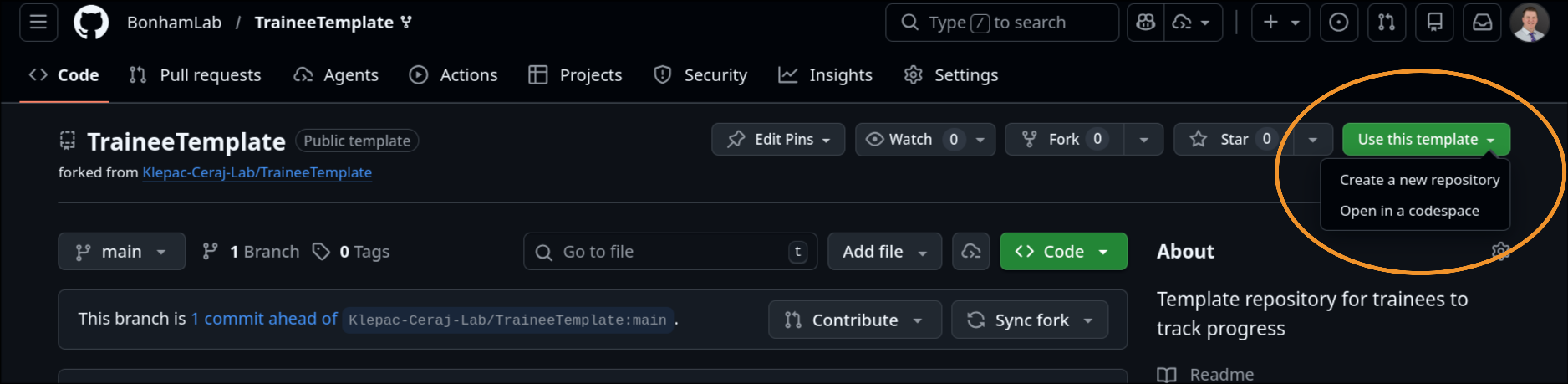 Then, follow the instructions in the template’s README.md
Periodic meetings
Each week, at least 24 hours prior to your periodic meetings with Kevin, create a new branch in your repo, and then make a new meeting note with the correct date in the PeriodicMeetings/ subfolder.
Commit and push the note to your repo, then create a pull request (see development workflow). Request a review from Kevin (@kescobo), who will leave comments
Posters and presentations
Project Repositories
Each software or analysis project should have its own repo or repos